Memory Bus Width Explained: What 128-bit, 192-bit and 256-bit Mean on a Graphics Card
Memory bus width explained: what 128-bit, 192-bit and 256-bit mean, how to work out bandwidth, why cache matters, and when a narrow bus holds a card back.
📘 Part of The Complete Graphics Card Guide 2026. New here? Start with the guide.
Disclosure: This article contains Amazon affiliate links. If you buy through them, we may earn a small commission at no extra cost to you.
“12GB GDDR7 192-bit Memory.” Most people read straight past that number on an Amazon listing. But the memory bus width helps explain one of the most confusing things about graphics cards: why a card with more memory can be slower than one with less. Here’s what it means, in plain language.
Memory bus width: the highway between the chip and its memory
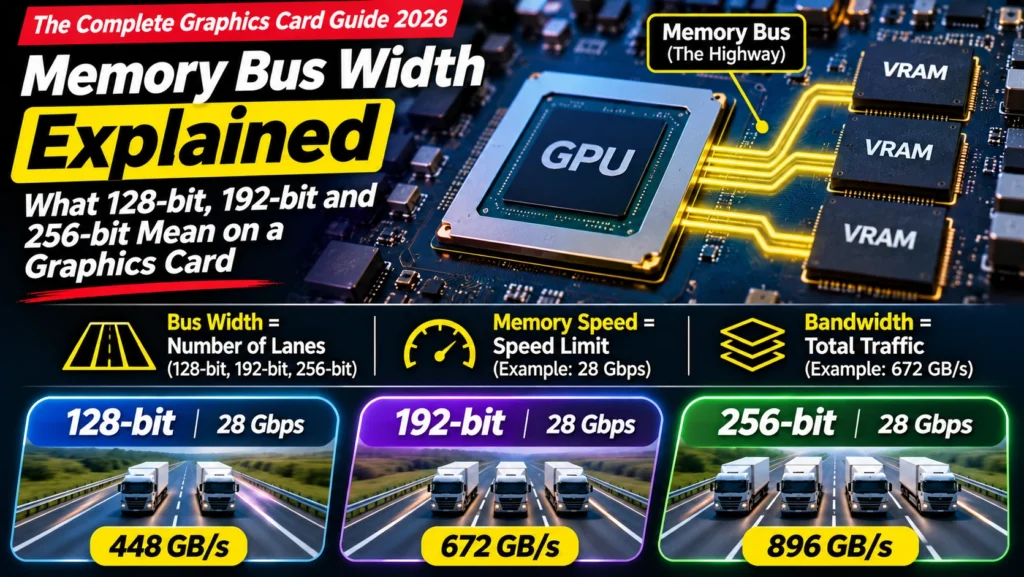
A graphics card’s chip (the GPU) constantly fetches data from its video memory (VRAM): textures, video frames, AI model data. The connection between them is the memory bus.
Picture a highway between a factory (the GPU) and its warehouse (the memory):
- Bus width (128-bit, 192-bit, 256-bit) is the number of lanes. More lanes, more trucks at once.
- Memory speed (for example 28 Gbps) is the speed limit on each lane.
- Bandwidth (for example 672 GB/s) is the total traffic the highway carries per second.
A wider highway or a higher speed limit both mean more traffic. If the highway is too narrow for the factory’s needs, the factory waits for deliveries, no matter how fast its workers are.
Work out bandwidth yourself
You can calculate any card’s memory bandwidth with one simple formula:
Bandwidth (GB/s) = bus width ÷ 8 × memory speed (Gbps)
(The ÷ 8 converts bits into bytes.)
Example, the RTX 5070: 192 ÷ 8 × 28 = 672 GB/s.
Here’s how current cards compare:
| Card | Bus width | Memory speed | Bandwidth |
|---|---|---|---|
| RTX 5090 | 512-bit | 28 Gbps (GDDR7) | 1,792 GB/s |
| RTX 5080 | 256-bit | 30 Gbps (GDDR7) | 960 GB/s |
| RTX 5070 Ti | 256-bit | 28 Gbps (GDDR7) | 896 GB/s |
| RTX 5070 | 192-bit | 28 Gbps (GDDR7) | 672 GB/s |
| RX 9070 XT / RX 9070 | 256-bit | 20 Gbps (GDDR6) | 640 GB/s |
| RTX 5060 Ti / RTX 5060 | 128-bit | 28 Gbps (GDDR7) | 448 GB/s |
| RX 9060 XT | 128-bit | ~20 Gbps (GDDR6) | 320 GB/s |
Sources: NVIDIA, AMD, Notebookcheck
👉 What “GDDR7” and “28 Gbps” mean: Article 12: GDDR7 vs GDDR6 Explained
Why more GB doesn’t always mean faster
This is the most useful thing to understand about memory bus width.
The RTX 5060 Ti 16 GB has more memory than the RTX 5070 12 GB. But it sits on a 128-bit highway, while the RTX 5070 has a 192-bit one: 448 GB/s against 672 GB/s. Add the RTX 5070’s more powerful chip, and it’s clearly faster in most games and editing work.
Think of it this way: – GB (memory size) is how big the warehouse is. – Bus width is how wide the road to it is.
A huge warehouse on a narrow road still can’t deliver goods quickly. Which matters more depends on your work:
- Gaming and video editing are mostly about moving data quickly, so bandwidth matters a lot.
- AI first needs the whole model to fit in memory, so size matters most; bandwidth then decides how fast it runs. That’s why the 16 GB RTX 5060 Ti is a good budget AI card despite its narrower bus.
👉 How much memory you need: Article 3: How Much VRAM Do You Need?
Why memory bus width and memory size are linked
Each memory chip connects to the GPU through its own 32-bit channel. So the bus width tells you how many memory chip channels a card has:
- 128-bit = 4 channels
- 192-bit = 6 channels
- 256-bit = 8 channels
- 512-bit = 16 channels
With common 2 GB chips, that gives 8 GB, 12 GB, 16 GB and 32 GB, which is exactly why those memory sizes are so common. The RTX 5070’s 192-bit bus and 12 GB match up this way.
To offer more memory on the same bus, makers can fit two chips per channel (often on both sides of the board), or use larger 3 GB chips. That’s how some 128-bit cards come in both 8 GB and 16 GB versions.
This is also why chip designers can’t simply “add more memory” to a card: the bus width largely decides the options.
The cache trick: why a narrow bus isn’t always a disaster
Modern GPUs have a large, very fast store of memory inside the chip itself, called cache. NVIDIA uses a large L2 cache; AMD calls its version Infinity Cache (64 MB on the RX 9070 XT, per AMD).
Think of it as a small storeroom inside the factory. If the item the workers need is already in the storeroom, nobody needs to use the highway at all. A big cache lets a card with a narrower bus perform better than its raw bandwidth suggests.
But it has limits. When NVIDIA cut the RTX 4060 Ti to a 128-bit bus and relied on a bigger cache, reviewers found it helped at 1080p but didn’t fully make up for the narrower bus at 1440p, where the 4060 Ti only matched the older RTX 3060 Ti (TechSpot). Tom’s Hardware noted that higher resolutions reduce how often the cache can help (Tom’s Hardware). And cache can’t fix running out of memory size.
The practical lesson: a 128-bit card is fine for 1080p, but if you game at 1440p or above, a 192-bit or 256-bit card is the safer choice.
Does bus width matter when you buy?
Like the memory type, bus width comes with the chip: every RTX 5070 is 192-bit, every RX 9070 XT is 256-bit. You can’t choose it separately, and versions of the same card from different brands won’t differ.
Where it helps:
- Understanding why cards rank as they do. It explains why a 12 GB card can beat a 16 GB one.
- Choosing a level. For 1440p gaming or heavy editing, prefer 192-bit or wider. For 1080p gaming or budget AI, 128-bit is acceptable.
- Reading reviews. “Memory bandwidth” in a review is just the bus width and memory speed multiplied together.
In the end, the best guide to a card’s speed is independent test results, not any single number. Our head-to-heads, like RTX 5060 Ti 16GB vs RX 9060 XT 16GB and RTX 5070 vs RX 9070, use real benchmarks.
Quick summary
- Bus width is the number of “lanes” between the GPU and its memory: 128-bit, 192-bit, 256-bit or 512-bit.
- Bandwidth = bus width ÷ 8 × Gbps. The RTX 5070 gets 672 GB/s; the RTX 5060 Ti 448 GB/s.
- More GB isn’t always faster: a 16 GB card on a 128-bit bus can be slower than a 12 GB card on a 192-bit bus.
- Bus width decides memory sizes: each 32 bits is one memory channel.
- Cache helps a narrow bus, especially at 1080p, but doesn’t fully replace bandwidth at higher resolutions.
- For 1440p and above, prefer 192-bit or wider.
What to look for on Amazon: checklist
- ☐ For 1440p or 4K gaming, the card has a 192-bit or wider bus
- ☐ For 1080p gaming or budget AI, 128-bit is acceptable
- ☐ You’re not choosing a card only for its GB number
- ☐ You’ve checked independent benchmarks for real speed
- ☐ The bus width in the listing matches the official spec for that model (if not, check the model number)
Compare cards
- 128-bit, 16 GB: RTX 5060 Ti 16 GB · RX 9060 XT 16 GB
- 192-bit, 12 GB: RTX 5070
- 256-bit, 16 GB: RX 9070 · RX 9070 XT · RTX 5070 Ti
Bottom Line
Memory bus width is the number of lanes on the highway between a graphics chip and its memory. Multiply it by the memory speed and you get bandwidth, which explains why a 12 GB, 192-bit RTX 5070 outruns a 16 GB, 128-bit RTX 5060 Ti in most games. You can’t choose bus width separately, but you can use it to pick the right level: 192-bit or wider for 1440p and heavy editing, 128-bit only for 1080p or budget AI, and always confirm with real benchmarks.
Sources
- NVIDIA: GeForce RTX 50 series specifications
- AMD: Radeon RX 9000 series quick reference
- Notebookcheck: RX 9070 XT vs RTX 5070 Ti
- Notebookcheck: MSI RTX 5060 Ti 16G review
- TechSpot: RTX 4060 Ti review (128-bit bus and L2 cache)
- Tom’s Hardware: RTX 4060 review (cache and effective bandwidth)
Where next?
⬅️ Back to The Complete Graphics Card Guide 2026: see all 20 articles
➡️ Next: Article 14: GPU Clock Speed and OC Edition
🔗 Related: – Article 12: GDDR7 vs GDDR6 Explained – Article 3: How Much VRAM Do You Need? – Article 10: Parts of a Graphics Card Explained