How Much VRAM Do You Need in 2026? 8GB vs 12GB vs 16GB for Gaming, Editing and AI
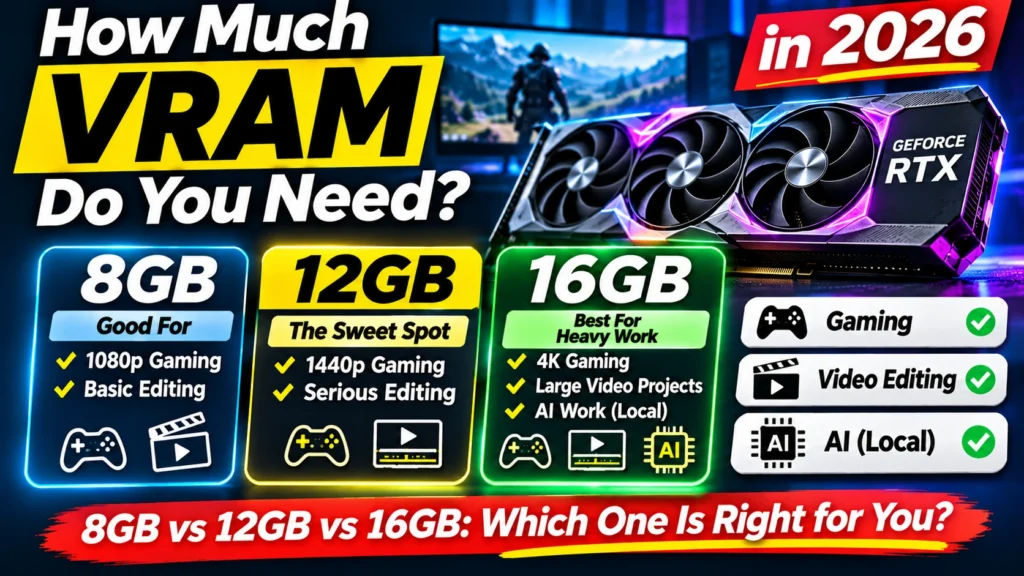
How much VRAM do you need in 2026? A simple 8GB vs 12GB vs 16GB guide for gaming, video editing and AI, with real test results and Indian buying advice.
📘 Part of The Complete Graphics Card Guide 2026. New here? Start with the guide.
Disclosure: This article contains Amazon affiliate links. If you buy through them, we may earn a small commission at no extra cost to you.
Every graphics card listing leads with a number like “8GB”, “12GB” or “16GB”. It’s often the biggest number on the box, and it’s the one most people use to compare cards. So how much VRAM do you need? The honest answer depends on what you do, and getting it wrong in either direction costs you: too little and your card struggles, too much and you’ve paid for memory you’ll never use.
This article gives you a clear answer for gaming, video editing and AI, backed by real test results, plus the one big mistake people make when comparing GB numbers.
Want the short textbook definition first? Our VRAM (Video Memory) Explained post covers the basics in a few minutes. This article goes further: real numbers, which cards have how much, and what to buy.
What VRAM is, in one minute
VRAM (video memory) is memory built onto the graphics card itself. It’s separate from your PC’s normal RAM, and it’s much faster, because the graphics chip needs to reach it constantly.
Think of it as the card’s desk. Whatever the card is working on has to be laid out on that desk:
- in a game, the textures (the “skins” on every wall, face and car), 3D shapes and the frames being drawn
- in video editing, the frames of your timeline, effects and colour grades
- in AI, the entire “brain” of the AI model you’re running
A bigger desk lets the card keep more open at once. When the desk is full, the card has to keep fetching things from the much slower main RAM or your drive. That’s when you see stutters, slowdowns, blurry textures that never sharpen, or an AI model that refuses to load.
The one mistake: more GB doesn’t mean a faster card
Here’s the trap. A card with 16 GB is not automatically faster than a card with 12 GB.
VRAM is the size of the desk, not the speed of the worker. The RTX 5060 Ti 16 GB has more memory than the RTX 5070 12 GB, but the RTX 5070 has a more powerful chip and a wider road to its memory (192-bit instead of 128-bit). In most games and editing work, the RTX 5070 is faster.
So think of VRAM as a minimum you must have, not a score to maximise. Once you have enough for your work, extra GB does nothing. Below that line, though, performance can fall off a cliff.
👉 Why the “road” width matters: Article 13: Memory Bus Width Explained
How much VRAM do you need for gaming?
The best evidence comes from cards sold in two memory sizes, so the only difference is the VRAM. Tom’s Hardware tested the RTX 5060 Ti 8 GB against the RTX 5060 Ti 16 GB across 21 games. The results show exactly where 8 GB stops being enough:
| Setting | How much slower the 8 GB card was |
|---|---|
| 1080p, medium settings | 2.3% (no real difference) |
| 1440p, ultra settings | 18% |
| 1440p, with ray tracing | 39.6% |
| 4K, ultra settings | 42% |
Source: Tom’s Hardware
So 8 GB is fine at 1080p with medium settings, and becomes a real problem as you raise resolution, detail or ray tracing. Some new games already need more than 8 GB even at 1080p: TechSpot found Monster Hunter Wilds needs more than 8 GB for its Ultra preset at 1080p (TechSpot).
Two newer features also use extra VRAM: ray tracing (realistic lighting) and frame generation (AI-made extra frames, part of DLSS 4 and FSR). In one Cyberpunk 2077 test at 1440p with maximum ray tracing and 4x frame generation, the 16 GB card was about 18% faster (Newegg Insider).
My recommendation for gamers:
| Your monitor and settings | VRAM to buy |
|---|---|
| 1080p, medium settings, esports games (Valorant, CS2) | 8 GB is acceptable |
| 1080p high/ultra, or newer AAA games | 12 GB |
| 1440p | 12 GB minimum, 16 GB better |
| 4K, or lots of ray tracing | 16 GB |
PC Gamer’s 2026 testing reaches the same conclusion: 8 GB cards still run games, but the 16 GB versions are much faster in some titles (PC Gamer). If you keep a card for four or five years, as most Indian buyers do, buy for the games coming next, not just today’s.
How much VRAM do you need for video editing?
Video editors in Premiere Pro, DaVinci Resolve and CapCut fill VRAM with timeline frames, effects, colour grades and noise reduction. Higher resolutions and heavier effects need more.
There’s no single official chart for this, because it depends heavily on your footage and effects. Here’s a practical rule of thumb I’d follow:
| What you edit | VRAM I’d buy |
|---|---|
| 1080p YouTube videos, simple cuts and titles | 8 GB works |
| 4K footage, colour grading, a few effects | 12 GB |
| Heavy 4K, 6K/8K footage, noise reduction, lots of effects (especially in DaVinci Resolve) | 16 GB or more |
DaVinci Resolve in particular leans heavily on the graphics card, and its “GPU memory full” warning is a common sign you’ve run out. If you’re buying a card mainly for editing in 2026, 12 GB is the sensible minimum.
👉 More on editing: Article 5: Best Graphics Card for Video Editing
How much VRAM do you need for AI?
This is where VRAM matters most. To run an AI chatbot on your own PC (for example with the free tool Ollama), the whole AI model has to fit in VRAM. If it doesn’t fit, it either won’t run or runs painfully slowly using your main RAM instead.
AI models are described by their size in “B” (billions of parameters). Bigger models are smarter but need more memory. Here’s roughly how much VRAM popular sizes need with Ollama’s default “compressed” setting (called 4-bit quantization, which shrinks a model to about a quarter of its full size with a small loss of quality):
| Model size | Examples | VRAM needed (approx.) | Card that fits it |
|---|---|---|---|
| 7–8B | Llama 3.1 8B, Qwen3 8B | 6–7 GB | 8 GB card |
| 12–14B | Gemma 3 12B, Qwen3 14B | 10–12 GB | 12 GB (tight), 16 GB comfortable |
| 27–32B | Gemma 3 27B, Qwen3 32B | 19–24 GB | 24 GB or more |
| 70B | Llama 3.3 70B | 42–52 GB | Beyond a single home card |
Sources: localaimaster, localllm.in, flaviocopes
A handy rule of thumb: VRAM needed ≈ model size in B × 0.6, plus a little extra for long conversations or documents.
Image generators (Stable Diffusion, Flux and similar) follow the same idea. Older, smaller image models run on 8 GB; the newer, higher-quality ones are far happier on 12–16 GB or more.
My recommendation for AI: for AI, prefer more GB over more speed. A 16 GB card like the RTX 5060 Ti 16 GB can run models that a faster 12 GB RTX 5070 simply can’t fit. If AI is your main reason for buying, 16 GB is the realistic minimum, and NVIDIA is the safer brand because most AI tools are built for its cards first.
👉 More on AI: Article 6: Best GPU for AI
How much VRAM do popular cards have?
| VRAM | Current cards (2026) |
|---|---|
| 8 GB | RTX 5050, RTX 5060, RTX 5060 Ti 8 GB, RX 9060 XT 8 GB |
| 12 GB | RTX 5070, Intel Arc B580 |
| 16 GB | RTX 5060 Ti 16 GB, RX 9060 XT 16 GB, RX 9070, RX 9070 XT, RTX 5070 Ti, RTX 5080 |
| 32 GB | RTX 5090 |
Notice that some models (RTX 5060 Ti, RX 9060 XT) come in both 8 GB and 16 GB. On Amazon, both versions are often on the same page. Always check which one is selected before you buy.
Real example: when the problem isn’t VRAM
Not every slowdown is a VRAM problem. I recently helped with a streaming PC that lagged badly: an RTX 2060 SUPER (8 GB) running OBS with NVIDIA Broadcast’s background removal. The graphics chip was at 97% load, but it was using under 2 GB of its 8 GB of VRAM. The desk was mostly empty; the worker was simply overloaded.
More VRAM wouldn’t have fixed that. A faster chip would. So before you blame memory, check your GPU’s memory use in Task Manager (Performance tab → GPU → “Dedicated GPU memory”). If it’s near full while you work, you need more VRAM. If it’s not, you need more power.
Quick summary
- VRAM is the card’s desk: it must be big enough for your work, but extra beyond that does nothing.
- More GB isn’t automatically faster. A 12 GB RTX 5070 beats a 16 GB RTX 5060 Ti in most games and editing.
- Gaming: 8 GB for 1080p medium only; 12 GB for 1080p high and 1440p; 16 GB for 4K and heavy ray tracing.
- Video editing: 12 GB is the sensible minimum; 16 GB for heavy 4K and above.
- AI: VRAM is king. 16 GB is the realistic minimum; 8B models fit on 8 GB, 14B models want 12–16 GB, 32B models need 24 GB.
- Check Task Manager to see whether you’re actually running out of VRAM.
What to look for on Amazon: checklist
- ☐ The listing says the GB you need (look for “8GB”, “12GB” or “16GB” in the title)
- ☐ If the card comes in two sizes, the right size button is selected
- ☐ You’re comparing the same model: don’t assume a 16 GB card is faster than a 12 GB card of a higher model
- ☐ For AI, you’ve picked 16 GB or more
- ☐ For 1440p or 4K gaming, you’ve avoided 8 GB cards
- ☐ The memory type is GDDR7 for RTX 5060 and above (GDDR6 for AMD RX 9000)
Check today’s prices
- 8 GB, entry gaming: RTX 5060
- 12 GB, the all-rounder: RTX 5070, e.g. MSI RTX 5070 Gaming Trio OC
- 16 GB, budget AI and editing: RTX 5060 Ti 16 GB
- 16 GB, budget gaming: RX 9060 XT 16 GB
- 16 GB, high end: RTX 5070 Ti
Comparing two cards with different memory? See our RTX 5060 Ti 16GB vs RX 9060 XT 16GB and RTX 5070 vs RX 9070 head-to-heads.
Bottom Line
So, how much VRAM do you need? For most people buying in 2026, 12 GB is the sweet spot: it handles 1080p and 1440p gaming and 4K editing comfortably. Choose 16 GB if you run AI models or game at 4K, and accept 8 GB only for 1080p esports or a very tight budget. Remember that VRAM is a minimum to meet, not a score to chase: once you have enough, put your money into a faster chip instead.
Sources
- Tom’s Hardware: RTX 5060 Ti 8GB vs 16GB across 21 games
- TechSpot: RTX 5060 Ti 8GB vs 16GB tested
- PC Gamer: are 8 GB GPUs still enough in 2026?
- Newegg Insider: is 8GB of VRAM still enough in 2026?
- localaimaster: Ollama RAM and VRAM table
- localllm.in: Ollama VRAM requirements 2026
- flaviocopes: how much VRAM do you need to run an LLM locally?
- NVIDIA GeForce RTX 50 series specifications
Where next?
⬅️ Back to The Complete Graphics Card Guide 2026: see all 20 articles
➡️ Next: Article 4: Power Supply for Your Graphics Card
🔗 Related: – Article 2: GPU Buying Guide India 2026 – Article 6: Best GPU for AI – VRAM (Video Memory) Explained