HDMI vs DisplayPort on Your Graphics Card: HDMI 2.1b, DisplayPort 2.1b and Which Port to Use
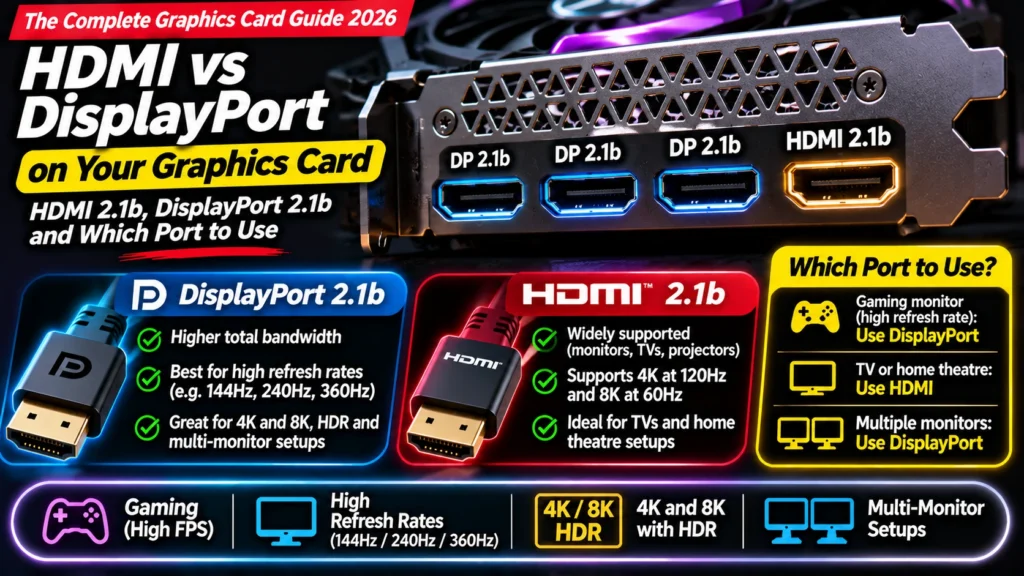
HDMI vs DisplayPort on a graphics card: what HDMI 2.1b and DisplayPort 2.1b mean, which port to use for monitors and TVs, cables, plus common mistakes.
📘 Part of The Complete Graphics Card Guide 2026. New here? Start with the guide.
Disclosure: This article contains Amazon affiliate links. If you buy through them, we may earn a small commission at no extra cost to you.
Graphics card listings end with something like “3x DisplayPort 2.1b, 1x HDMI 2.1b“. Which socket should you use? Does it matter? The HDMI vs DisplayPort question has a simple answer for most people, but a wrong cable or a forgotten setting can quietly waste the smooth, high-refresh picture you paid for. This guide covers the ports, cables, monitors and the mistakes to avoid.
For a quick general comparison, our DisplayPort Explained post covers the basics, including daisy-chaining. This article focuses on connecting a new graphics card.
The sockets on the back of your graphics card
On the metal bracket at the back of a graphics card are the display outputs: where you plug in your monitors and TVs. Most current cards have:
- Three DisplayPort sockets (a flat connector with one angled corner)
- One or two HDMI sockets (the same connector as on your TV)
For example, AMD lists its RX 9070 XT with DisplayPort 2.1a and HDMI 2.1b (AMD), and NVIDIA’s RTX 50 series uses DisplayPort 2.1b and HDMI 2.1b. The exact mix varies by brand and model: some versions have two HDMI ports, so check the brand’s spec page if you need a particular layout.
Most current cards can run up to four displays at once.
HDMI vs DisplayPort: the short answer
- Gaming or editing monitor → use DisplayPort. It’s the PC standard, supports the highest refresh rates, and works with G-SYNC and FreeSync on almost every monitor.
- TV → use HDMI. TVs rarely have DisplayPort, and HDMI 2.1 supports 4K at 120 Hz with variable refresh on modern TVs.
- Monitor with only HDMI → use HDMI. That’s fine; just make sure both the monitor and the cable support the refresh rate you want.
HDMI vs DisplayPort: what the version numbers mean
HDMI 2.1b
HDMI 2.1 raised HDMI’s maximum bandwidth to 48 Gbps, enough for 4K at 120–144 Hz and features like variable refresh rate. HDMI 2.1b is a later revision of the same standard: mainly clean-ups and clarifications, not a new speed tier (HDMI Forum).
A newer HDMI 2.2 standard with double the bandwidth was announced in 2025, but current graphics cards use HDMI 2.1b.
DisplayPort 2.1 (2.1a, 2.1b) and “UHBR”
DisplayPort 2.1 is the newest DisplayPort generation. Its speed is described by UHBR (“ultra high bit rate”) modes:
- UHBR10: up to 40 Gbps
- UHBR13.5: up to 54 Gbps
- UHBR20: up to 80 Gbps
NVIDIA’s RTX 50 series supports UHBR20, the fastest mode, which is enough for extreme combinations like 8K at 165 Hz with compression (TFTCentral, TweakTown). The letter after 2.1 (a or b) is a revision; “2.1b” doesn’t automatically mean UHBR20, so check what speed your card and monitor support.
Does this matter for you? Only at the very high end. A 1440p 165 Hz monitor or a 4K 144 Hz monitor works fine over standard connections. UHBR20 matters for 4K at 240 Hz and above, or 8K.
Your monitor: resolution and refresh rate
Two numbers describe a monitor:
- Resolution: how sharp it is (1080p, 1440p, 4K).
- Refresh rate: how many times per second it updates, in hertz (Hz): 60, 144, 165, 240 Hz and higher. Higher feels smoother, especially in games.
Your graphics card has to produce enough frames to use that refresh rate, and the port and cable have to carry it. That’s why matching your card and monitor matters. A powerful card on a 60 Hz monitor wastes most of its frames; a budget card can’t keep a 4K 240 Hz monitor busy.
👉 Matching a card to your monitor: Article 7: Best Graphics Card for Gaming
G-SYNC and FreeSync in one paragraph
Without help, a monitor refreshes at fixed moments, while the graphics card finishes frames at uneven moments. The result is screen tearing (a visible split across the picture) or stutter. Variable refresh rate (VRR) technology makes the monitor wait for each frame. NVIDIA calls it G-SYNC and AMD calls it FreeSync. Most modern monitors support FreeSync, and NVIDIA cards work with most of them as “G-SYNC Compatible”. It’s worth turning on: it makes gameplay noticeably smoother. It works best over DisplayPort, and over HDMI 2.1 on TVs that support VRR.
Cables matter more than you’d think
An old or cheap cable can silently limit you to a lower refresh rate or cause flickering.
- For HDMI 2.1 features (4K 120 Hz and up): use a cable labelled “Ultra High Speed HDMI”, certified for 48 Gbps (HDMI Forum).
- For DisplayPort 2.1 at the highest speeds: use a DP40 cable (up to 40 Gbps) or DP80 cable (up to 80 Gbps, for UHBR20). For longer runs at 80 Gbps, VESA introduced DP80LL (“low loss”) cables (PCWorld, Corsair).
- Keep high-speed cables short. Very high bandwidth works best over short, good-quality cables (around 1–2 metres).
- The cable in your monitor’s box is usually the right type for that monitor. Use it if you can.
Mistakes people make (and how to fix them)
1. Plugging the monitor into the motherboard
The most common mistake after installing a graphics card. Your motherboard may have its own HDMI or DisplayPort socket for the processor’s built-in graphics. If your monitor is plugged in there, you’re not using your graphics card at all. Always plug the monitor into the sockets on the graphics card (lower down on the back of the PC, on the card’s bracket).
2. Never changing the refresh rate
Windows doesn’t always switch to your monitor’s highest refresh rate automatically. A 165 Hz monitor running at 60 Hz looks like any ordinary screen.
Fix: right-click the desktop → Display settings → Advanced display → set Choose a refresh rate to the highest option. If the highest rate doesn’t appear, try a different cable or port.
3. Using an old cable or adapter
Old HDMI cables and cheap DisplayPort-to-HDMI adapters may cap you at 60 Hz. Use the right certified cable, and avoid adapters where you can.
4. Not turning on G-SYNC or FreeSync
Enable FreeSync (or “Adaptive Sync”) in your monitor’s own menu, then in the NVIDIA Control Panel or AMD Software turn on G-SYNC / FreeSync.
Multiple monitors: streamers and editors
Many streamers and editors use two screens: one for the game or timeline, one for OBS, chat or tools. Any current graphics card handles this easily.
- Plug both monitors into the graphics card, not one into the motherboard.
- Put your main, highest-refresh monitor on DisplayPort.
- If you capture a screen in OBS, remember OBS can show up in its own capture; turn on “Hide OBS windows from screen capture” (see Article 8: Best GPU for Streaming).
Quick summary
- DisplayPort for monitors, HDMI for TVs. Use HDMI on a monitor only if it has no DisplayPort.
- HDMI 2.1b is a revision of HDMI 2.1 (48 Gbps). DisplayPort 2.1 goes up to 80 Gbps with UHBR20 on RTX 50 cards.
- Most people don’t need the top speeds: 1440p and 4K at 144–165 Hz work on standard connections.
- Use certified cables: “Ultra High Speed HDMI” or DP40/DP80.
- Plug into the graphics card, set the refresh rate in Windows, and turn on G-SYNC/FreeSync.
What to look for on Amazon: checklist
- ☐ The card has the ports you need (most have 3 DisplayPort + 1 HDMI; some have 2 HDMI)
- ☐ Your monitor’s inputs match (DisplayPort preferred for gaming monitors)
- ☐ For a TV, the card and TV both support HDMI 2.1
- ☐ You have a certified cable: Ultra High Speed HDMI, or DP40/DP80 DisplayPort
- ☐ For 4K 240 Hz or 8K, both card and monitor support UHBR20
Shop
- Cables: Ultra High Speed HDMI 2.1 cables · DisplayPort 2.1 DP80 cables
- Cards: NVIDIA RTX 5070 · AMD RX 9070
Bottom Line
In the HDMI vs DisplayPort choice, use DisplayPort for your monitor and HDMI for a TV. Both HDMI 2.1b and DisplayPort 2.1 on modern cards are fast enough for nearly every monitor; only 4K 240 Hz and 8K setups need DisplayPort’s top UHBR20 speed. What matters more day to day is plugging into the graphics card (not the motherboard), using a certified cable, setting the refresh rate in Windows and turning on G-SYNC or FreeSync.
Sources
- AMD: Radeon RX 9070 XT specifications
- TFTCentral: RTX 50 series adds DisplayPort 2.1 UHBR20
- TweakTown: RTX 50 supports DisplayPort 2.1b UHBR20, up to 8K 165 Hz
- HDMI Forum: HDMI 2.1b specification overview
- PCWorld: DisplayPort UHBR certification explained
- Corsair: DisplayPort 2.1b and HDMI 2.1b, everything you need to know
- Top Tech Compare: DisplayPort Explained
Where next?
⬅️ Back to The Complete Graphics Card Guide 2026: see all 20 articles
➡️ Next: Article 20: DLSS Explained
🔗 Related: – Article 7: Best Graphics Card for Gaming – Article 8: Best GPU for Streaming – DisplayPort Explained