Parts of a Graphics Card Explained: What You’re Actually Paying For
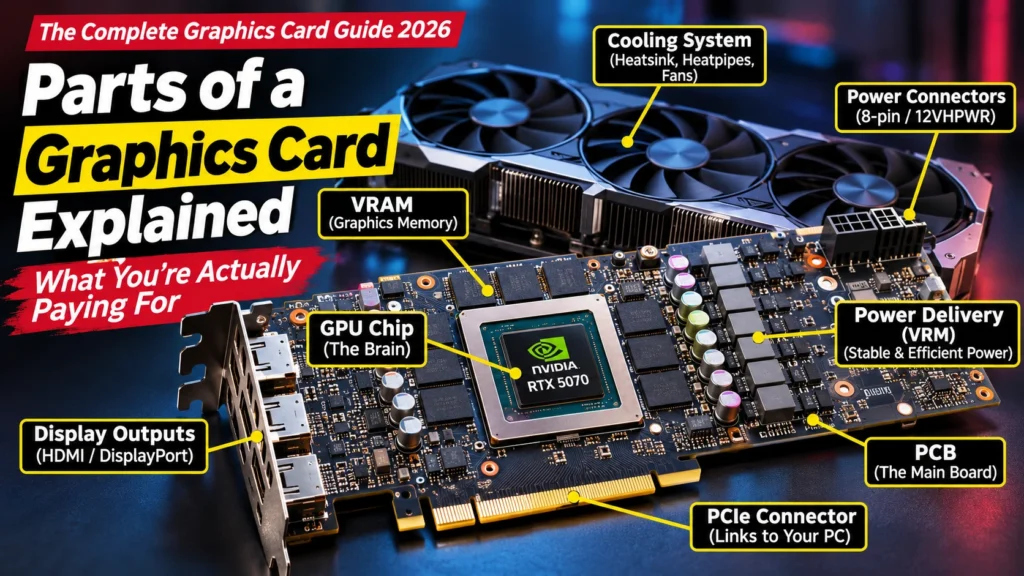
Parts of a graphics card explained simply: the GPU chip, VRAM, VRM power delivery, heatpipes, fans, backplate and ports, and why same-chip cards differ.
📘 Part of The Complete Graphics Card Guide 2026. New here? Start with the guide.
Disclosure: This article contains Amazon affiliate links. If you buy through them, we may earn a small commission at no extra cost to you.
On Amazon, two RTX 5070 cards can differ in price by ₹30,000 or more, even though they use exactly the same NVIDIA chip. Where does that money go? The answer is in the parts of a graphics card that surround the chip: the power delivery, the cooler, the build quality and the extras.
This article takes you on a simple tour of a graphics card, from the chip in the middle to the sockets on the back, and explains which parts are worth paying more for.
The parts of a graphics card: a small computer on a board
A graphics card isn’t just a chip. It’s a complete mini-computer: its own processor (the GPU), its own memory, its own power system and its own cooling, all on one board that plugs into your PC (TechSpot). Let’s go through it piece by piece.
1. The GPU chip: the brain
In the middle of the board sits the GPU (graphics processing unit), the chip that does all the work. It’s designed by NVIDIA, AMD or Intel, and it decides almost everything about the card’s performance: how fast it is, which features it has (like DLSS or NVIDIA Broadcast), and which memory it can use.
This is why the model name matters most. Every RTX 5070, from every brand, uses the same RTX 5070 chip. When you buy a “MSI” or “Zotac” RTX 5070, you’re choosing everything around that chip.
👉 The different kinds of cores inside the chip: Article 15: CUDA, Tensor and RT Cores Explained
2. The video memory (VRAM): the desk
Arranged around the chip are several small memory chips: the card’s VRAM. This is the “12GB” or “16GB” on the box. They sit very close to the GPU because the chip needs to reach them constantly and quickly.
The number of memory chips is linked to the memory “bus width”. Each memory chip connects to the GPU through its own 32-bit channel. An RTX 5070, for example, has a 192-bit bus, which means six memory chips; with 2 GB each, that’s its 12 GB.
👉 How much you need: Article 3: How Much VRAM Do You Need? · Memory types: Article 12: GDDR7 vs GDDR6 Explained · Bus width: Article 13: Memory Bus Width Explained
3. The circuit board (PCB): the city map
All these parts sit on the PCB (printed circuit board), the flat green or black board with fine copper lines running through it. Think of it as the road map of a city: it connects the chip to its memory, its power supply and the outside world.
Better cards often use thicker boards with more layers, which helps carry power cleanly and spread heat. You can’t see this from an Amazon listing, which is one reason independent reviews matter.
4. Power delivery (VRM): the water treatment plant
Your power supply sends 12-volt electricity to the card, but the GPU chip needs much lower, very steady voltages. The VRM (voltage regulator module) converts and controls that power for the chip and memory.
Think of it as a water treatment plant: it takes rough water from the river and delivers clean, steady water to every tap. A VRM is made of several “phases” (small sets of components working in turns). More, better-quality phases mean cleaner power, cooler running and more room for overclocking.
This is one of the biggest real differences between cheap and premium versions of the same card. Premium models (ASUS TUF and ROG, MSI Gaming Trio and Suprim, Gigabyte Aorus) usually have stronger power delivery than basic ones.
5. The cooler: the radiator
The chip, memory and VRM all produce heat, and the cooler’s job is to carry it away. A typical cooler has several parts:
- Thermal paste: a thin grey layer between the GPU chip and the cooler, filling tiny gaps so heat flows across.
- Thermal pads: soft, squishy pads that carry heat from the memory chips and VRM to the cooler.
- Base plate or vapor chamber: the metal block touching the chip. A vapor chamber is a sealed, flat copper chamber with a little liquid inside that spreads heat across its whole surface very quickly. It’s common on high-end cards.
- Heatpipes: copper tubes that carry heat away from the base to the fins. More and thicker heatpipes move more heat. Very cheap, low-power cards sometimes skip them.
- Heatsink fins: a block of thin metal fins, like a car radiator, that releases the heat into the air.
- Fans: two or three fans blow air through the fins. Some cards stop the fans completely when the card is idle (often called “zero RPM” mode), so they’re silent while you browse.
- Shroud: the plastic or metal cover over the fans, which guides airflow (and carries the brand’s styling and RGB lights).
The cooler is where most of the price difference between versions goes. A bigger cooler (thicker, longer, three fans, more heatpipes, a vapor chamber) keeps the chip cooler and quieter, and lets it hold its top speed for longer. In hot Indian summers, that matters.
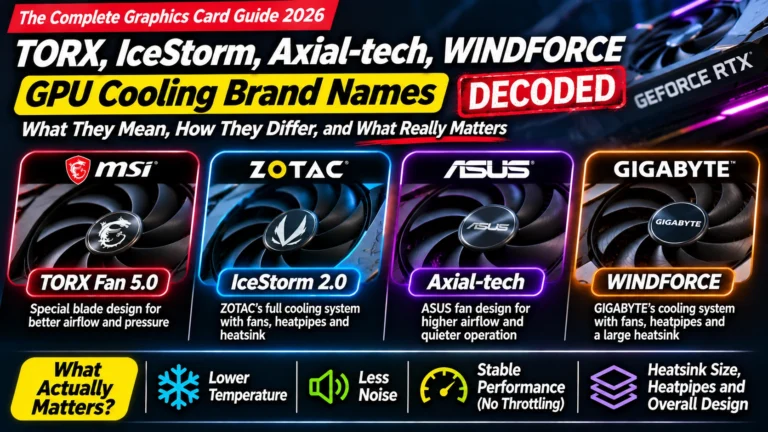
👉 Two fans vs three, card size and slots: Article 16: Two Fans or Three? GPU Cooling and Card Size · Brand fan names like TORX and IceStorm: Article 17: GPU Cooling Brand Names Decoded
6. The backplate: the armour
On the back of many cards is a flat metal backplate. It stiffens the card so it doesn’t bend, protects the components on the back of the board during installation, and on some cards also helps spread heat. Basic cards sometimes use plastic or have none at all.
7. The power connector: the water inlet
Graphics cards need more power than the motherboard slot can supply, so they have one or more power connectors on top or at the end. You’ll see two types:
- 8-pin connectors (older, familiar), with bigger cards needing two, three or four
- the newer 16-pin (12V-2×6) connector, a single smaller plug used on many RTX 50 cards
Some cards also have a small LED that warns you if the power cable isn’t connected properly.
👉 Power supplies and safe connection: Article 4: Power Supply for Your Graphics Card
8. The display ports: the exits
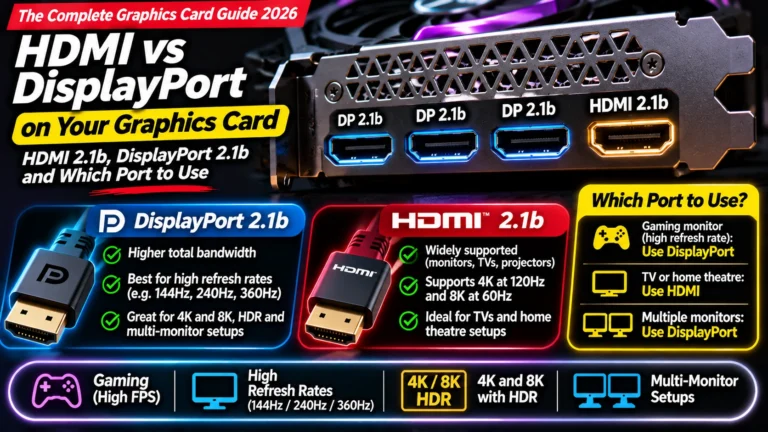
At the back, on a metal bracket that screws to your PC cabinet, are the sockets for your monitors, usually three DisplayPort and one HDMI. This is where you plug in your screen. (A common mistake: after installing a card, plugging the monitor into the motherboard’s socket instead of the card’s.)
👉 Which port to use: Article 19: HDMI vs DisplayPort
9. The PCIe connector: the gold teeth
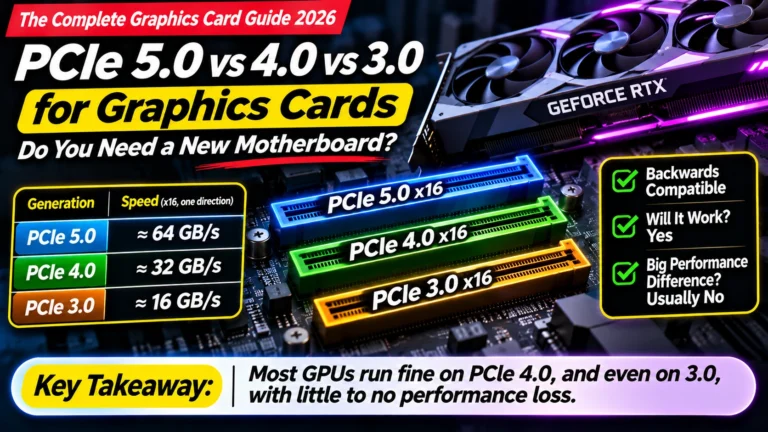
Along the bottom edge is a row of gold contacts, the PCI Express connector, which plugs into the long slot on your motherboard. This is how the card talks to the rest of your PC. Newer cards use “PCIe Gen 5”, but they work in older slots too.
👉 Does the PCIe generation matter? Article 18: PCIe 5.0 vs 4.0 vs 3.0
10. The extras
- BIOS chip and BIOS switch: the card’s built-in software. Some premium cards have two BIOS settings with a small switch: a quiet mode and a performance mode.
- RGB lighting: coloured lights for looks. No effect on performance.
- Support bracket: heavy cards can sag over time, so many come with a bracket or stand to hold them level.
- Fan headers and sensors: some cards add temperature sensors or connections for case fans.
Why the parts of a graphics card change its price
Now you can see where the money goes. Two RTX 5070 cards share the same chip and memory, so their speed is within a few percent of each other. The price difference comes from:
| Part | Basic version | Premium version |
|---|---|---|
| Cooler | Two fans, smaller heatsink, fewer heatpipes | Three fans, large heatsink, more heatpipes, sometimes a vapor chamber |
| Power delivery (VRM) | Enough for standard speeds | Stronger, cooler, more overclocking room |
| Board and build | Simpler board, plastic shroud, maybe no metal backplate | Thicker board, metal shroud and backplate |
| Factory overclock | None or small | Slightly higher (usually a few percent faster) |
| Extras | Few | Dual BIOS, RGB, sag bracket, extra sensors |
| Warranty and support | Varies | Often stronger |
What’s worth paying for: a better cooler is the most useful upgrade, especially in a hot room or a small cabinet. Stronger power delivery matters if you plan to overclock. RGB and big factory overclocks are nice-to-haves, not must-haves.
Our Best RTX 5070 Ti and 5070 Cards comparison shows how this plays out across ASUS, MSI, Gigabyte and Zotac models.
Quick summary
- The GPU chip decides performance; every card with the same chip performs within a few percent.
- VRAM chips sit around it; their number is tied to the memory bus width.
- The VRM cleans up power for the chip; premium cards have stronger ones.
- The cooler (paste, pads, vapor chamber, heatpipes, fins, fans) is where most of the price difference between versions goes.
- The backplate, connectors, ports and extras complete the card.
- Pay extra for cooling first, power delivery second, looks last.
What to look for on Amazon: checklist
- ☐ You’ve chosen the model (chip) first, e.g. RTX 5070
- ☐ The version has a cooler that suits your room and cabinet (three fans for hot rooms, if it fits)
- ☐ You’ve checked heatpipes / vapor chamber details on the brand’s website if you’re comparing versions
- ☐ It has a metal backplate if you care about build quality
- ☐ You know which power connector it uses (8-pin or 16-pin)
- ☐ You’re not paying a big premium just for RGB or a small factory overclock
Compare versions
- RTX 5070 versions on Amazon: for example the three-fan MSI RTX 5070 Gaming Trio OC or the premium ASUS TUF RTX 5070 OC
- RX 9070 XT versions on Amazon: see our Best RX 9070 XT Cards comparison
Bottom Line
The parts of a graphics card explain its price: the GPU chip sets the performance, and everything around it (power delivery, cooler, board, backplate and extras) decides how cool, quiet, durable and expensive the card is. When choosing between versions of the same card, pay for better cooling first, then stronger power delivery if you’ll overclock, and treat RGB and factory overclocks as optional extras.
Sources
- TechSpot: anatomy of a graphics card
- PCWorld: graphics card dissection
- ASUS ROG: what’s inside my ASUS graphics card?
- Micro Center: anatomy of a graphics processing unit
- NVIDIA: GeForce RTX 5070 family specifications
Where next?
⬅️ Back to The Complete Graphics Card Guide 2026: see all 20 articles
➡️ Next: Article 11: How to Read GPU Names
🔗 Related: – Article 9: What Is a Graphics Card? – Article 16: Two Fans or Three? GPU Cooling and Card Size – Laptop Cooling Systems Explained