PCIe 5.0 vs 4.0 vs 3.0 for Graphics Cards: Do You Need a New Motherboard?
PCIe 5.0 vs 4.0 vs 3.0 for graphics cards: what the slot does, real test results, the x8 trap on budget cards, PCIe 6.0 and how to check your motherboard.
📘 Part of The Complete Graphics Card Guide 2026. New here? Start with the guide.
Disclosure: This article contains Amazon affiliate links. If you buy through them, we may earn a small commission at no extra cost to you.
Almost every new graphics card on Amazon says “PCI Express Gen 5 Interface” or “PCIe 5.0“. If your motherboard is a few years old, you might worry the card won’t work, or will be badly slowed down. For most people, the PCIe 5.0 vs 4.0 question barely matters. But there’s one specific trap on budget cards worth knowing about, and this article explains it with real test results.
What PCI Express is
PCI Express (written PCIe) is the long slot on your motherboard where the graphics card plugs in, and the connection standard it uses. It’s the road between the graphics card and the rest of your PC: the processor, the system memory and your drives.
Two things describe that road:
- The generation (Gen 3, 4, 5, 6): how fast each lane is. Each new generation roughly doubles the speed per lane.
- The number of lanes (written x16, x8, x4): how many lanes the card uses. A full-size graphics slot has 16.
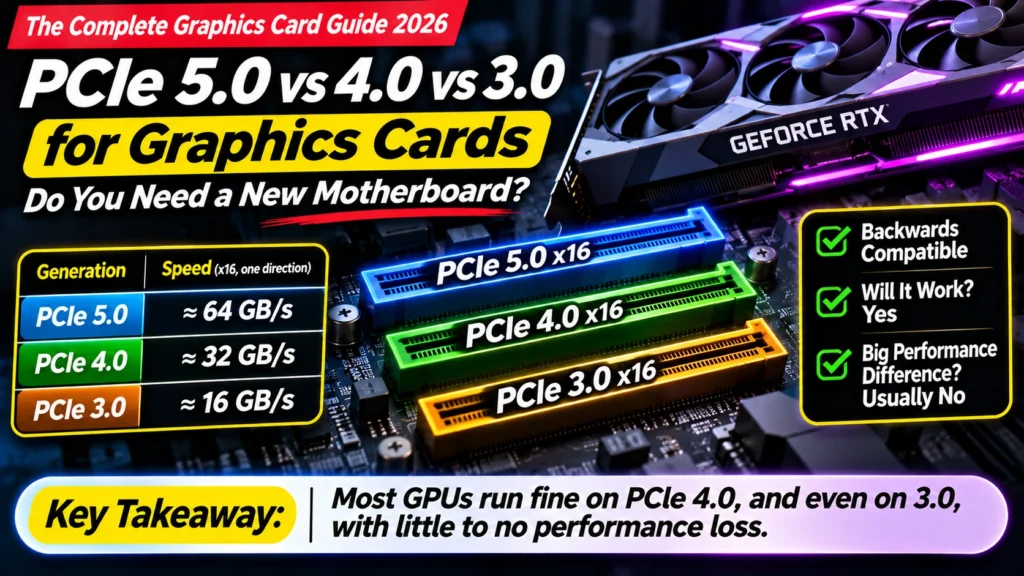
| Generation | Approx. speed with 16 lanes (one direction) | Typical motherboards |
|---|---|---|
| PCIe 3.0 | ~16 GB/s | Older boards, roughly before 2020–21 |
| PCIe 4.0 | ~32 GB/s | Most boards from about 2020 onwards |
| PCIe 5.0 | ~64 GB/s | Newer high-end and mid-range boards |
| PCIe 6.0 | ~128 GB/s | Data-centre equipment only (2026) |
Good news: it’s backwards compatible
A PCIe 5.0 graphics card works in a PCIe 4.0 or 3.0 slot. It simply runs at the slower slot’s speed. You don’t need a new motherboard just because the box says “Gen 5”. The plug is the same shape, and the card and motherboard agree on the fastest speed they both support.
PCIe 5.0 vs 4.0 vs 3.0: how much speed do you actually lose?
For full-size cards that use all 16 lanes, very little:
- TechPowerUp tested the RTX 5090, the most demanding card there is, and found you lose about 1% going from PCIe 5.0 x16 to PCIe 4.0 x16 in games (TechPowerUp).
- On PCIe 3.0 x16, the loss in games was roughly 1–4%, according to Gamers Nexus’s tests (Gamers Nexus).
If the fastest card in the world loses only a few percent on an old slot, mid-range x16 cards like the RTX 5070, RX 9070 or RX 9060 XT lose even less in practice.
One exception: heavy 3D rendering and content creation move far more data across the slot. TechPowerUp found render times got about 10% slower on reduced links like PCIe 3.0 x16, and about 25% slower on PCIe 3.0 x8 (Guru3D summary). Professional 3D artists should keep the slot in mind.
The trap: budget cards with only 8 lanes
Here’s where it does matter. To save cost, some budget cards use only 8 lanes (x8) instead of 16, even though they plug into the same full-size slot:
| Card | Lanes |
|---|---|
| RTX 5060 Ti, RTX 5060 | x8 |
| RTX 5050 | x8 (reported) |
| AMD RX 9060 XT | x16 |
| RTX 5070 and above, RX 9070 and above | x16 |
On a modern PCIe 5.0 motherboard, 8 lanes of Gen 5 is plenty. But on an older PCIe 3.0 board, x8 means only about 8 GB/s, a quarter of what a modern x16 card gets on Gen 4.
That becomes a real problem when the card runs out of video memory and has to borrow your PC’s main RAM across that narrow road:
- TechSpot tested the RTX 5060 Ti 8 GB on PCIe 5.0, 4.0 and 3.0. On 5.0 and 4.0 it was fine, but on PCIe 3.0 its performance collapsed in memory-hungry games; in some, they had to lower texture quality just to stop crashes (TechSpot).
- ComputerBase found the 8 GB card lost up to 10% even on PCIe 4.0 compared with 5.0, as reported by Tom’s Hardware.
- The 16 GB version held up much better, because it rarely runs out of memory in the first place.
- In a TechSpot budget-PC test, the x8 RTX 5060 struggled on a PCIe 4.0 platform, where AMD’s x16 RX 9060 XT delivered up to 61% better worst-case frame rates (1% lows) (TechSpot).
The lesson: an 8 GB card with x8 lanes on an older motherboard is the worst combination. If you’re upgrading an older PC (PCIe 3.0 or 4.0), prefer a card with 16 GB of memory, or one with a full x16 connection like the RX 9060 XT.
👉 Why 8 GB runs out: Article 3: How Much VRAM Do You Need?
What about PCIe 6.0?
PCIe 6.0 exists and doubles the speed again, but in 2026 it’s used in data-centre and AI server equipment, not home motherboards or gaming graphics cards. No consumer graphics card uses it. Don’t let it worry you, and don’t pay extra for anything claiming to be “ready” for it.
How to check your motherboard’s slot
Option 1: your motherboard’s specification page. Search your motherboard’s model name (it’s printed on the board, or shown in Windows: press Win + R, type msinfo32, and look at “BaseBoard Product”). On the maker’s website, look for the graphics slot’s PCIe version and lanes.
Option 2: GPU-Z (free). If you already have a graphics card installed, the free tool GPU-Z shows “Bus Interface”, for example “PCIe x16 4.0 @ x16 4.0”. The first part is what the card supports; the part after “@” is how it’s actually running.
Tips: – Always put your graphics card in the top long slot, closest to the processor. It’s usually the one wired for full x16 speed; lower long slots often run at x4. – Some motherboards share lanes between the graphics slot and M.2 SSD slots. Using certain M.2 slots can drop the graphics slot to x8. Check your motherboard manual if you have several SSDs.
PCIe 5.0 vs 4.0: do you need a new motherboard?
| Your motherboard | Your new card | Verdict |
|---|---|---|
| PCIe 5.0 or 4.0 | Any card | Fine. Just upgrade the card. |
| PCIe 3.0 | x16 card (RTX 5070, RX 9070, RX 9060 XT, etc.) | Fine. A few percent loss at most in games. |
| PCIe 3.0 | x8 card with 16 GB (RTX 5060 Ti 16 GB) | Acceptable. Small loss. |
| PCIe 3.0 | x8 card with 8 GB (RTX 5060, 5060 Ti 8 GB) | Avoid. Choose a 16 GB or x16 card instead. |
If your PC is old enough to have PCIe 3.0, your processor may also hold back a new card. That’s often a better reason to upgrade the platform than the slot itself (see Article 7: Best Graphics Card for Gaming on bottlenecks).
Quick summary
- PCIe is the slot and connection between your graphics card and PC. Each generation doubles the speed per lane.
- Backwards compatible: a PCIe 5.0 card works in PCIe 4.0 and 3.0 slots.
- x16 cards lose very little on older slots: about 1% on Gen 4, a few percent on Gen 3, in games.
- The trap: budget x8 cards with 8 GB can lose a lot on PCIe 3.0 (and some on 4.0) when memory runs out.
- PCIe 6.0 is for data centres; no home graphics card uses it.
- Use the top slot, and check your motherboard manual if you use several M.2 SSDs.
What to look for on Amazon: checklist
- ☐ You know your motherboard’s PCIe generation for the graphics slot
- ☐ On a PCIe 3.0 board, you’re choosing an x16 card or a 16 GB card, not an 8 GB x8 card
- ☐ You’re not paying extra just for “PCIe 5.0” on the box
- ☐ You’ll install the card in the top long slot
- ☐ You’ve checked whether your processor is also due for an upgrade
Good picks for older motherboards
- x16, 16 GB, great value: AMD RX 9060 XT 16 GB
- x8 but 16 GB, for AI and editing: NVIDIA RTX 5060 Ti 16 GB
- x16, mid-range: NVIDIA RTX 5070 · AMD RX 9070
Our RTX 5060 Ti 16GB vs RX 9060 XT 16GB and RTX 5060 vs Arc B580 vs RX 9060 XT 8GB comparisons have full benchmarks.
Bottom Line
In the PCIe 5.0 vs 4.0 vs 3.0 question, most people don’t need a new motherboard: full x16 graphics cards lose only about 1% on PCIe 4.0 and a few percent on PCIe 3.0 in games. The one combination to avoid is a budget 8 GB card with only 8 lanes on an older PCIe 3.0 board, where performance can collapse once memory runs out. On an older PC, choose a 16 GB card or a full x16 card like the RX 9060 XT, put it in the top slot, and spend the money you’d have spent on a motherboard on a better card instead.
Sources
- TechPowerUp: RTX 5090 PCI Express scaling
- Gamers Nexus: RTX 5090 PCIe 5.0 vs 4.0 vs 3.0 x16 benchmarks
- Guru3D: PCIe lane configurations and content creation with the RTX 5090
- TechSpot: RTX 5060 Ti 8GB vs 16GB across PCIe 3.0, 4.0 and 5.0
- Tom’s Hardware: RTX 5060 Ti 8GB loses up to 10% on PCIe 4.0
- TechSpot: GPU for a budget PC scaling test
- Tom’s Hardware: AMD Radeon RX 9060 XT launch (PCIe 5.0 x16)
Where next?
⬅️ Back to The Complete Graphics Card Guide 2026: see all 20 articles
➡️ Next: Article 19: HDMI vs DisplayPort
🔗 Related: – Article 3: How Much VRAM Do You Need? – Article 2: GPU Buying Guide India 2026 – Article 1: Decoding an Amazon GPU Listing