Best GPU for AI in 2026: Run Chatbots and Image Generators on Your Own PC
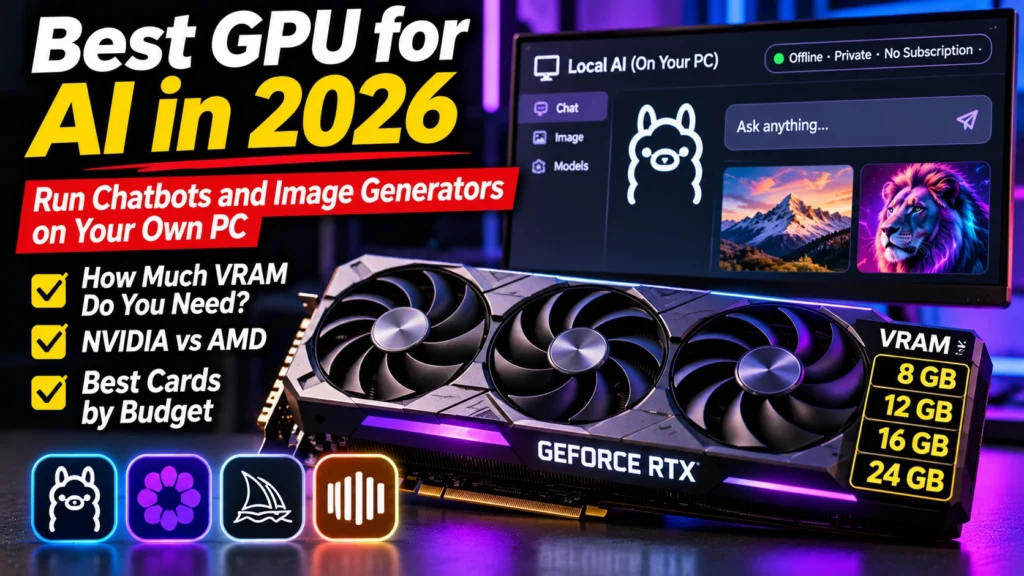
Best GPU for AI in 2026: how much VRAM local chatbots and image generators need, NVIDIA vs AMD, real speed numbers and picks for every budget in India.
📘 Part of The Complete Graphics Card Guide 2026. New here? Start with the guide.
Disclosure: This article contains Amazon affiliate links. If you buy through them, we may earn a small commission at no extra cost to you.
You don’t need ChatGPT’s servers to use AI. Free tools now let you run capable chatbots and image generators on your own computer: privately, offline, with no monthly fee. The catch is that AI is hungry for one specific thing, and that decides which graphics card you need. Choosing the best GPU for AI comes down to one question more than any other: how much video memory does it have?
This guide explains what running AI on your own PC means, why memory matters more than speed, how fast different cards are, NVIDIA vs AMD, and which card to buy at each budget.
What “running AI on your own PC” means
Normally, when you use ChatGPT or Gemini, your question travels to a huge data centre and the answer comes back. Running AI locally means the AI model lives on your own computer and does all its thinking there.
Why would you want that?
- Privacy: your documents, client files and questions never leave your PC. Useful for lawyers, doctors, businesses and anyone handling confidential material.
- No subscription: the models and tools are free; you pay once for the hardware.
- Works offline.
- Freedom to experiment: try dozens of different models, including specialised ones for coding, Hindi or document summaries.
Popular free tools include Ollama and LM Studio for chatbots (they run “open-weights” models like Llama, Qwen, Gemma and Mistral), and ComfyUI for image generators like Stable Diffusion and Flux. If you’re new to these ideas, our Large Language Models Explained and Open Weights Model Explained posts are good primers.
The heavy lifting happens on your graphics card. Its thousands of small cores and special AI cores (NVIDIA calls them Tensor cores) are built for exactly the kind of maths AI models do.
Why video memory (VRAM) matters most for AI
For gaming and editing, VRAM is one factor among many. For AI, it’s the deciding factor.
An AI model is essentially a giant file of numbers (its “brain”). To run quickly, the whole model has to fit in your graphics card’s memory (VRAM). If it fits, it runs fast. If it doesn’t, the tool either refuses to load it, or splits it between the graphics card and your much slower main RAM, and the speed collapses.
AI models are described by size in “B” (billions of parameters). Bigger models are generally smarter but need more memory. Tools like Ollama “compress” models by default, a technique called quantization that shrinks a model to about a quarter of its full size with a small loss in quality (our Model Quantization Explained post covers how). Here’s roughly what each size needs when compressed this way:
| Model size | Examples | VRAM needed (approx.) | What it’s like |
|---|---|---|---|
| 7–8B | Llama 3.1 8B, Qwen3 8B | 6–7 GB | Good for everyday questions, summaries, simple coding |
| 12–14B | Gemma 3 12B, Qwen3 14B | 10–12 GB | Noticeably smarter; good all-round assistants |
| 27–32B | Gemma 3 27B, Qwen3 32B | 19–24 GB | Close to older commercial chatbots for many tasks |
| 70B | Llama 3.3 70B | 42–52 GB | Beyond any single home graphics card |
Sources: localaimaster, localllm.in
Two extras use more memory on top of this: longer conversations or documents (the “context window”, explained in our Context Window Explained post), and image generators, whose newer high-quality models are large too.
The rule: for AI, choose more VRAM over more speed. A slower card with 16 GB can run models that a faster 12 GB card simply can’t load.
👉 More on memory: Article 3: How Much VRAM Do You Need?
How fast are different cards?
Chatbot speed is measured in tokens per second. A token is roughly a word or part of a word (see our Tokenization Explained post). Most people read at well under 10 tokens per second, so anything above about 20 feels instant, and higher speeds matter mainly for long answers, coding and processing big documents.
The fairest comparison I found is a community scoreboard for llama.cpp (the engine inside Ollama and LM Studio), where people run the same small 7B test model on their own cards (llama.cpp scoreboard summary):
| Card | VRAM | Speed on a 7B model (approx.) |
|---|---|---|
| RTX 5090 | 32 GB | ~290 tokens/sec |
| RTX 5080 | 16 GB | ~182 tokens/sec |
| RTX 5070 Ti | 16 GB | ~177 tokens/sec |
| RTX 5060 Ti 16 GB | 16 GB | ~91 tokens/sec |
These are results for a small test model; bigger models run slower on every card. But the takeaway is clear: every one of these cards is fast enough for comfortable chatting. The real difference between them is not speed, it’s which models fit in their memory. Notice that the RTX 5070 Ti is almost as fast as the more expensive RTX 5080, with the same 16 GB.
For image generation, one lab test found the RTX 5060 Ti 16 GB made a Flux image in about 37 seconds and an SDXL image in about 11 seconds, with Flux using about 15.7 GB of its 16 GB of memory (computingforgeeks). That’s workable, but right at the edge. Faster and bigger cards cut that time sharply; results vary a lot between tests and settings.
NVIDIA or AMD: which is the best GPU for AI?
For most people, NVIDIA. Here’s why.
Almost every AI tool is built first for NVIDIA’s CUDA software, which has been the standard for AI work for over a decade. On an NVIDIA card, Ollama, LM Studio and ComfyUI generally install and run without fuss on Windows.
AMD’s equivalent, ROCm, has improved a lot, and AMD’s newest RX 9000 cards can run local AI well. Community tests report the RX 9070 XT (16 GB) running an 8B model at about 56 tokens/sec on Linux (localaimaster). But support on Windows is still patchy: sources disagree on which tools officially support RX 9000 cards there, and LM Studio uses a different, generally slower path (called Vulkan) on AMD under Windows (glukhov.org). Image generation tools are also less straightforward on AMD.
My take: if AI is a main reason you’re buying a graphics card and you use Windows, buy NVIDIA. If you’re comfortable with Linux and mostly run chatbots, an AMD card with 16 GB is a cheaper option, especially as AMD often costs less in India.
What about NPUs and “AI PCs”?
You’ll see laptops and processors advertised as “AI PCs” with an NPU (neural processing unit). NPUs are small, power-efficient AI chips good for light tasks like background blur in video calls or Windows features. They’re nowhere near a graphics card for running chatbots or image generators. Our NPU Explained post covers the difference. For serious local AI on a desktop, the graphics card is what counts.
Best GPU for AI: my picks by budget
These are my picks for buyers in India as of November 2026. Prices move weekly, so check today’s price and see Article 2: GPU Buying Guide India 2026 for current price bands.
Budget: NVIDIA RTX 5060 Ti 16 GB
For: beginners and enthusiasts running 7B–14B chatbots and image generators.
The cheapest current NVIDIA card with 16 GB. It fits 14B models comfortably, runs image generators (Flux at the edge of its memory), and uses only about 180 W. It’s slower than higher cards, but still fast enough for comfortable chatting. Make sure you pick the 16 GB version, not the 8 GB one.
Check RTX 5060 Ti 16 GB prices
Best balance: NVIDIA RTX 5070 Ti
For: people who use AI seriously and also game or edit.
16 GB like the 5060 Ti, but roughly twice as fast on the scoreboard above, and nearly as fast as the RTX 5080. Excellent for 14B chatbots, faster image generation and heavier creative work. Needs a 750 W power supply. Indian prices for it have been high in late 2026, so wait for a fair one.
Serious AI: NVIDIA RTX 5090
For: developers, researchers and power users running 27–32B models or doing heavy image and video generation.
The only current home card with 32 GB, which fits the 27–32B class of models that 16 GB cards can’t. It’s also the fastest card by a wide margin. It’s very expensive, needs a 1,000 W power supply, and uses the 16-pin power connector at the very top of its rating, so read our safety tips in Article 4: Power Supply for Your Graphics Card.
What about the RTX 5070?
The RTX 5070 is my top pick for editing and streaming, but not for AI. Its 12 GB limits you to smaller models, and the cheaper RTX 5060 Ti 16 GB can fit more. If AI matters more to you than gaming speed, pick the 5060 Ti 16 GB over the 5070.
AMD alternative: Radeon RX 9070 XT or RX 9060 XT 16 GB
For: Linux users and tinkerers who mainly run chatbots and want 16 GB for less money.
Both have 16 GB. Expect more setup effort on Windows and weaker support for image generation tools.
Check RX 9070 XT prices · Check RX 9060 XT 16 GB prices
Getting started in 10 minutes
If you already have an NVIDIA card with 8 GB or more, you can try local AI today:
- Download Ollama (ollama.com) or LM Studio (lmstudio.ai) and install it.
- Pick a small model to start, such as an 8B model (Llama 3.1 8B or Qwen3 8B).
- Ask it something. Watch your graphics card’s memory use in Task Manager (Performance → GPU → “Dedicated GPU memory”).
- If it runs smoothly with memory to spare, try a bigger model. If memory is full and it slows down, you’ve found your card’s limit.
This is also the best way to decide whether you need a new card: you’ll see exactly where your current one runs out.
Quick summary
- Local AI means running chatbots and image generators on your own PC: private, free and offline.
- VRAM decides which models you can run. 8 GB fits 7–8B models; 12–16 GB fits 12–14B; 24–32 GB fits 27–32B.
- Speed matters less than memory. Even the RTX 5060 Ti 16 GB is fast enough for comfortable chatting.
- NVIDIA is the easy choice for AI on Windows; AMD works best on Linux.
- NPUs aren’t a substitute for a graphics card for serious local AI.
- My picks: RTX 5060 Ti 16 GB (budget), RTX 5070 Ti (best balance), RTX 5090 (serious AI).
What to look for on Amazon: checklist
- ☐ At least 16 GB of VRAM if AI is a main reason for buying
- ☐ For the RTX 5060 Ti or RX 9060 XT, the 16 GB version is selected
- ☐ NVIDIA if you use Windows and want tools to “just work”
- ☐ Your power supply is big enough (see Article 4: Power Supply for Your Graphics Card)
- ☐ The card fits your cabinet
- ☐ It’s sold by Amazon, Appario or the brand’s official store
Bottom Line
The best GPU for AI for most people in 2026 is the NVIDIA RTX 5070 Ti: 16 GB of memory, nearly RTX 5080 speed, and strong for gaming and editing too. On a budget, the RTX 5060 Ti 16 GB is the smartest buy, because its memory matters more for AI than the extra speed of a 12 GB card. Only the RTX 5090, with 32 GB, opens up the larger 27–32B models. Whatever you buy, prioritise VRAM, choose NVIDIA if you’re on Windows, and try a free tool like Ollama on your current card first to see where its limits are.
Sources
- llama.cpp GPU benchmark scoreboard summary (April 2026)
- llama.cpp community performance discussion (GitHub)
- localaimaster: Ollama RAM and VRAM table
- localllm.in: Ollama VRAM requirements 2026
- localaimaster: RX 9070 XT for local AI
- glukhov.org: ROCm vs Vulkan for AMD local LLM hosting (2026)
- computingforgeeks: best GPU for Stable Diffusion and ComfyUI
- Puget Systems: Stable Diffusion performance, NVIDIA GeForce vs AMD Radeon
- NVIDIA GeForce RTX 50 series specifications
Where next?
⬅️ Back to The Complete Graphics Card Guide 2026: see all 20 articles
➡️ Next: Article 7: Best Graphics Card for Gaming
🔗 Related: – Article 3: How Much VRAM Do You Need? – Article 15: CUDA, Tensor and RT Cores Explained – On-Device AI Explained