Best GPU for Streaming in 2026: OBS, NVIDIA Broadcast and Kick or YouTube Without Lag
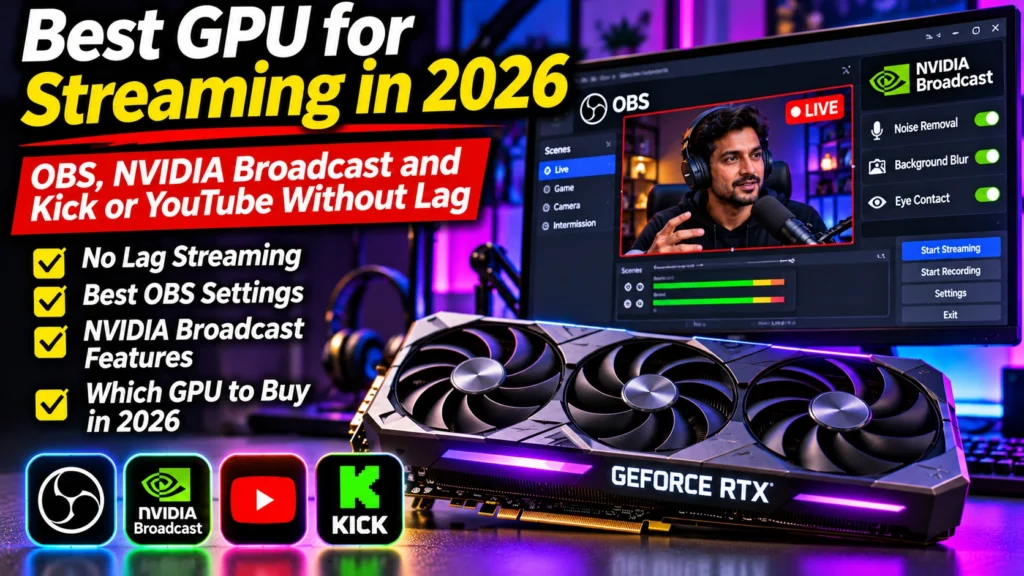
Best GPU for streaming in 2026: why streams lag, how OBS and NVIDIA Broadcast use your graphics card, a real lag fix, Kick and YouTube settings, and picks.
📘 Part of The Complete Graphics Card Guide 2026. New here? Start with the guide.
Disclosure: This article contains Amazon affiliate links. If you buy through them, we may earn a small commission at no extra cost to you.
If your stream lags, the first instinct is to buy a bigger graphics card. Sometimes that’s the right answer. Often, though, the lag comes from one or two settings, and fixing them costs nothing. Finding the best GPU for streaming starts with understanding what your graphics card is actually doing while you’re live.
This guide explains how OBS and NVIDIA Broadcast use your graphics card, walks through a real streaming PC I fixed, gives you the settings for Kick and YouTube, and then tells you which card to buy if you do need an upgrade.
What your graphics card does while you stream
When you stream, your graphics card may be doing up to four jobs at once:
- Running your game (if you’re gaming), which is usually the heaviest job.
- Building your scene in OBS: combining your screen, webcam, overlays and alerts into one picture. This is light work.
- Encoding the video: compressing that picture into a stream small enough to send over the internet. NVIDIA cards have a separate chip for this called NVENC; AMD and Intel have their own. Because it’s a separate chip, encoding barely slows your games down.
- AI camera and microphone effects: background blur or removal, noise removal and similar effects from NVIDIA Broadcast. These run on the graphics card’s AI cores and can be surprisingly heavy.
Here’s the key point: on a modern NVIDIA card, job 3 (encoding) is almost free. Job 4 (AI effects) is often the hidden cause of lag, especially on older cards.
NVIDIA Broadcast: brilliant, but heavy
NVIDIA Broadcast is a free app that uses AI to clean up your webcam and microphone in real time (NVIDIA). Its main features:
- Noise removal: removes fan noise, keyboard clicks and background chatter from your mic
- Room echo removal: reduces the “talking in a bathroom” echo
- Virtual background: blurs, replaces or removes the background behind you, no green screen needed
- Auto frame: keeps you centred as you move
- Video noise removal: cleans up grainy webcam video in dim light
- Eye contact and Studio Voice (newer, more demanding effects)
It only works on NVIDIA RTX graphics cards (RTX 2060 or higher, per NVIDIA). AMD and Intel cards can’t run it, which is one of the main reasons streamers prefer NVIDIA. AMD’s own driver software has a microphone noise suppression feature, but nothing with Broadcast’s full range of camera effects.
The catch: every effect you switch on uses the graphics card’s AI cores, continuously, for the whole stream. Switch on several at 1080p on an older card, and the card can spend most of its power just on your webcam.
A real lag fix: one streaming PC, step by step
I recently helped fix a streaming PC that lagged badly on Kick. It’s a good example of where the problem usually hides.
The PC: Intel Core i5-13600K processor, 32 GB RAM, an RTX 2060 SUPER (8 GB, from 2019), an OBSBOT Tiny 2 webcam, OBS Studio streaming to Kick at 1080p.
Step 1: measure. With NVIDIA Broadcast running virtual background, auto frame, video noise removal and speaker effects, the graphics card was at 93% load, 75 °C and about 165 W of its 175 W limit. It was maxed out before the game or OBS even started.
Step 2: switch off what isn’t needed. – Auto frame: off. The OBSBOT webcam already tracks and frames the person in its own hardware, so the card was doing the same job twice. – Video noise removal: off. The room was well lit, so there was no grain to clean. – Speaker noise and echo removal: off. These clean up the sound you hear in your headphones, not what your viewers hear.
Result: graphics card load dropped to about 36%, temperature to 59 °C, power to about 24 W.
Step 3: the surprise. OBS was taking the webcam and microphone directly, not through NVIDIA Broadcast. So none of Broadcast’s effects were reaching the stream at all; the card was doing all that work for nothing. The fix: in OBS, select “Camera (NVIDIA Broadcast)” as the video device and “Microphone (NVIDIA Broadcast)” as the mic.
Step 4: the real limit. With OBS now using Broadcast and background removal on at 1080p, the card went back to 97% load and 84 °C, with Broadcast alone using about 90%. Interestingly, it used under 2 GB of its 8 GB of video memory, so memory wasn’t the problem; the old AI cores simply couldn’t keep up. Dropping the camera to 720p helped, but the picture looked too soft. That’s the point where a newer card genuinely makes sense.
What this shows: check your Broadcast effects and OBS devices before you spend money. And if one AI effect alone maxes out your card, it’s the age of the card, not your settings.
Free fixes to try before you upgrade
- Turn off Broadcast effects you don’t need. Especially auto frame (if your webcam tracks on its own), video noise removal (if your room is bright) and speaker effects.
- Use Blur instead of Remove for your background. It’s lighter on the card.
- Set your webcam to 30 fps, not 60. Viewers rarely notice on a facecam, and it halves the effect workload.
- Minimise the NVIDIA Broadcast window while live; its preview uses the graphics card too.
- Check OBS uses the Broadcast camera and mic (Step 3 above), or your effects aren’t reaching the stream.
- Use the hardware encoder. In OBS → Settings → Output, choose NVIDIA NVENC (or AMD/Intel’s hardware encoder), not “x264”, which uses your processor.
- Hide OBS from your screen capture. If you capture the monitor OBS is on, turn on Settings → General → “Hide OBS windows from screen capture” to avoid a “mirror tunnel” effect.
- Use a wired internet connection if you can; Wi-Fi drops cause stutters that look like lag.
Stream settings for Kick and YouTube
Kick
Kick doesn’t publish detailed encoder guidance that I could find, but streaming guides agree on these settings (Dacast, StreamHub):
| Setting | Value |
|---|---|
| Encoder | NVIDIA NVENC H.264 (or AMD/Intel hardware H.264) |
| Resolution / frame rate | 1080p at 30 or 60 fps |
| Bitrate | 6,000–8,000 kbps, constant (CBR); about 8,000 is the maximum |
| Keyframe interval | 2 seconds |
| Audio | AAC, 128–160 kbps |
Your upload speed must comfortably exceed your bitrate. Run a speed test: for 8,000 kbps (8 Mbps), you want at least 12–15 Mbps of stable upload.
YouTube
YouTube’s official recommendations for 1080p at 60 fps are 12 Mbps with H.264, or 4–10 Mbps with the newer AV1 or HEVC formats, which look better at lower bitrates (YouTube Help). RTX 40 and RTX 50 series cards can encode AV1 in hardware, and recent OBS versions support streaming it to YouTube. For 1440p at 60 fps, YouTube recommends 24 Mbps with H.264, or 6–30 Mbps with AV1/HEVC.
Tip: if you stream to YouTube with an RTX 40 or 50 series card, try AV1: you’ll get a sharper stream for the same upload speed.
NVIDIA or AMD: which makes the best GPU for streaming?
Streamers should strongly prefer NVIDIA. Three reasons:
- NVIDIA Broadcast (camera and mic AI effects) is NVIDIA-only.
- NVENC is mature, well supported in OBS and every streaming app, and barely affects game performance.
- Most streaming tutorials, plug-ins and tools are written with NVIDIA in mind.
AMD’s hardware encoders have improved and work fine for basic streaming. If you only stream your gameplay with a plain webcam and no AI effects, an AMD card is acceptable, and often better value for the gaming side (see Article 7: Best Graphics Card for Gaming).
Best GPU for streaming: my picks
These picks are for buyers in India as of November 2026. Prices change weekly; check today’s price, and see Article 2: GPU Buying Guide India 2026 for price bands.
Budget: NVIDIA RTX 5060 Ti 16 GB
For: “just chatting”, tutorials, watch-alongs and lighter games, with Broadcast effects.
New-generation AI cores handle Broadcast effects far better than older cards, it supports AV1, and it uses only about 180 W. Its 16 GB also leaves room if you dabble in AI tools. Avoid the 8 GB version.
Check RTX 5060 Ti 16 GB prices
Best for most streamers: NVIDIA RTX 5070
For: streaming games at 1080p or 1440p with background removal, noise removal and overlays, all on one PC.
Enough power to run a game, OBS and Broadcast’s effects at 1080p together, plus AV1 encoding for YouTube. It’s also my pick for streamers who edit their own clips (see Article 5: Best Graphics Card for Video Editing). Needs a 650 W power supply.
Check RTX 5070 prices · a good version: MSI RTX 5070 Gaming Trio OC
Heavy games plus every effect: NVIDIA RTX 5070 Ti
For: streaming demanding AAA games at high settings while running Broadcast effects at 1080p 60 fps.
16 GB and much more headroom. Needs a 750 W power supply. It’s been expensive in India in late 2026, so wait for a fair price.
Already have an RTX 30 or 40 series card?
You may not need to upgrade. Try the free fixes above first. An RTX 3060 or newer handles Broadcast’s common effects far better than the 2019-era RTX 20 series, and RTX 40 cards already support AV1.
Quick summary
- Encoding is cheap; AI camera effects are heavy. NVENC barely slows games, but NVIDIA Broadcast’s effects can max out older cards.
- Check before you buy: switch off unneeded effects, use Blur not Remove, set the webcam to 30 fps, and make sure OBS uses the Broadcast camera and mic.
- Kick: NVENC H.264, 1080p, 6,000–8,000 kbps CBR. YouTube: 12 Mbps H.264 at 1080p60, or AV1 at 4–10 Mbps.
- NVIDIA is the clear choice for streamers because of Broadcast and NVENC.
- My picks: RTX 5060 Ti 16 GB (budget), RTX 5070 (most streamers), RTX 5070 Ti (heavy games plus all effects).
What to look for on Amazon: checklist
- ☐ It’s an NVIDIA RTX card if you want NVIDIA Broadcast
- ☐ RTX 40 or 50 series if you want AV1 streaming to YouTube
- ☐ 16 GB if you choose the RTX 5060 Ti
- ☐ Your power supply is big enough (see Article 4: Power Supply for Your Graphics Card)
- ☐ The card fits your cabinet
- ☐ It’s sold by Amazon, Appario or the brand’s official store, near its price history
Bottom Line
The best GPU for streaming for most people in 2026 is the NVIDIA RTX 5070: it runs your game, OBS and NVIDIA Broadcast’s effects together, and encodes AV1 for YouTube. On a budget, the RTX 5060 Ti 16 GB is the smart buy; for demanding games with every effect on, the RTX 5070 Ti. But before you spend anything, check your Broadcast effects and OBS devices: as the real example above shows, the cause of stream lag is often a setting, and when it isn’t, it’s usually the age of your card’s AI cores rather than its memory.
Sources
- NVIDIA: Broadcast app
- NVIDIA: Broadcast app FAQ
- TechSpot: NVIDIA Broadcast 2.3 (October 2026)
- YouTube Help: live encoder settings, bitrates and resolutions
- Dacast: how to live stream on Kick with OBS
- StreamHub: Kick streaming quality settings
- NVIDIA GeForce RTX 50 series specifications
Where next?
⬅️ Back to The Complete Graphics Card Guide 2026: see all 20 articles
➡️ Next: Article 9: What Is a Graphics Card?
🔗 Related: – Article 5: Best Graphics Card for Video Editing – Article 15: CUDA, Tensor and RT Cores Explained – Webcam Resolution Explained