Best AI Video Editing Tools on a Budget (2026)
🎯 First, the honest truth You don’t need expensive tools right now. In 2026, there’s genuinely no reason to pay for a watermarked video export —...
🎯 First, the honest truth
You don’t need expensive tools right now.
In 2026, there’s genuinely no reason to pay for a watermarked video export — free tools give professional output; the differences only lie in what kind of video you’re making and how deep you need to go.
Here’s your complete free/cheap stack:
🛠️ Your Budget AI Video Stack
1. DaVinci Resolve — Your Main Editor (Free, Forever)
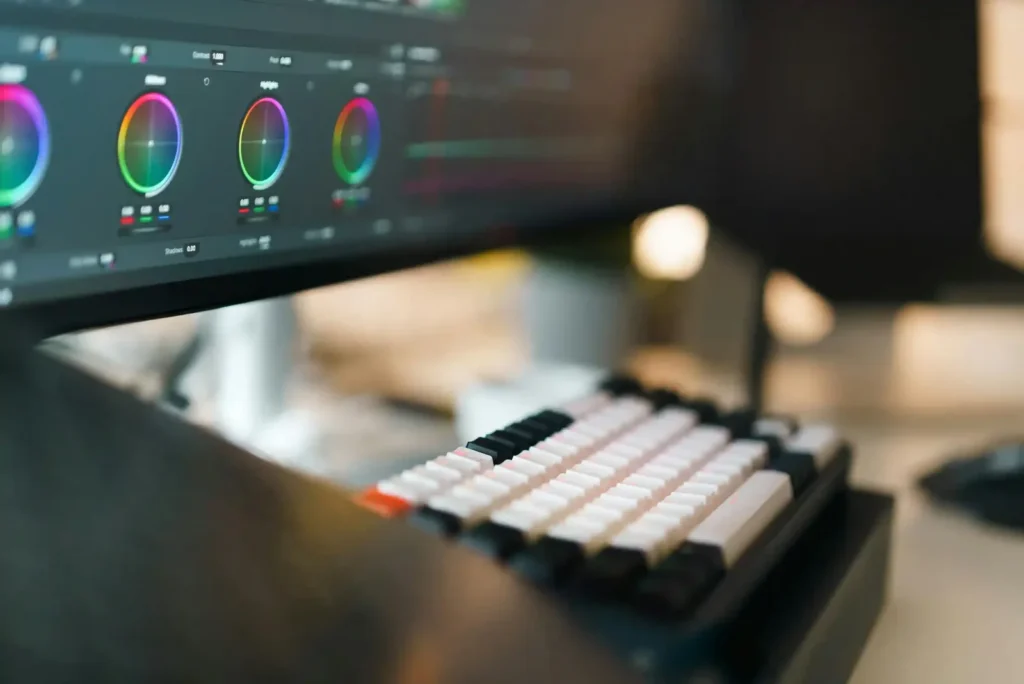
DaVinci Resolve remains the industry leader for free AI-powered color grading and professional finishing. It’s what Hollywood editors use. Free version is extremely powerful, color grading, cutting, audio mixing, visual effects, all in one app. The only catch is a slight learning curve, but YouTube tutorials are everywhere.
Use it for: long-form videos, client work, anything serious.
2. CapCut — Your Speed Tool (Free)
CapCut’s AI features — auto-captions, background removal, text-to-video — make it genuinely useful for modern content workflows. The desktop version exports without a watermark on the free tier. Auto-Captions transcribes your video audio and generates styled captions in seconds, which is a huge time-saver for accessibility and engagement.
Use it for: Reels, Shorts, quick social content, auto-subtitles.
3. Claude (you already have it!) — Your Script & Strategy Brain
This is where most editors waste time — thinking, not editing. Use Claude to:
- Write video scripts and hooks
- Generate captions and descriptions
- Brainstorm video ideas for any niche
- Write YouTube titles, thumbnails text ideas
- Repurpose one video into 5 different formats
Use it for: everything before and after you open the editor.
4. Kling AI — Free AI Video Generation
Kling 3.0 is the undisputed leader in physics-aware generation, with native 4K/60fps output and a 7-in-1 multi-modal editor for seamless background swaps — available without a monthly subscription.
Use it for: generating B-roll, cinematic clips, or scenes you can’t shoot yourself.
5. Filmora — Middle Ground if You Outgrow CapCut (~₹1,500/year)
Filmora occupies the sweet spot between CapCut’s simplicity and DaVinci Resolve’s power — positioned as “the editor you graduate to after free tools but before professional software,” with a clean interface, strong AI features, and enough depth to handle projects that outgrow CapCut.
Not urgent — try it only when you feel limited by free tools.
🎬 How to Make Interesting Videos — The Formula
This is what actually matters more than tools. Here’s the framework:
Hook in 3 seconds. The first frame has to stop the scroll. Bold text, a question, or a shocking visual. Use Claude to write 5 hook options and pick the sharpest one.
Tell one clear story. Don’t try to say everything. One video = one idea. Claude can help you outline this.
Use B-roll obsessively. Talking head + cuts to visuals = 3x more watchable. Generate free B-roll with Kling, or download from Pexels/Pixabay (completely free).
Subtitles always on. AI auto-captions are a huge time-saver for accessibility and engagement — 85% of people watch videos without sound on social media.
Color grade everything. Even a basic LUT in DaVinci makes your video look cinematic instantly. Free LUTs are everywhere online.
Audio is half the video. Bad audio = people leave. Use a lapel mic (₹500–1000 on Amazon) and CapCut’s AI noise removal.
📈 Learning Path (realistic, not overwhelming)
| Month | Focus |
|---|---|
| Month 1 | Master CapCut — make daily short clips |
| Month 2 | Learn DaVinci basics — color grading + cuts |
| Month 3 | Add Claude to your workflow for scripting |
| Month 4 | Experiment with Kling for AI-generated B-roll |